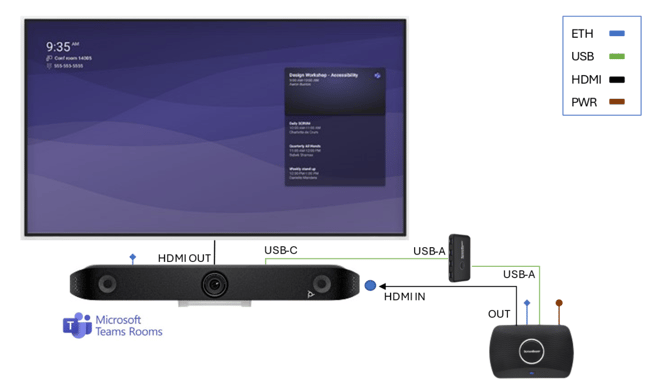
Integrating ScreenBeam 1100 Plus with Poly Studio X system (X32, X52, X72) allows in-room participants to wirelessly share content from their laptop, tablet or mobile phone. With ScreenBeam’s standards-based wireless display technology, users can present from Windows, Android, iOS, macOS and Chromebook devices using the ScreenBeam Conference app.
If you also include a ScreenBeam USB Pro Switch, you can enable wireless BYOD mode for Microsoft Teams Rooms on your Poly Studio X system.
Setup steps:
- Complete the Poly Studio X System Setup. Follow the official HP Poly setup guide to ensure your Studio X device is fully configured.
- Use an HDMI cable to connect the HDMI OUT port on the ScreenBeam 1100 Plus to the HDMI IN port on the Poly Studio X system.
- If you are using a USB Pro Switch:
- Connect a USB-C cable from the Poly video bar to one of the Device ports on the USB Pro Switch.
- Connect Host Input 1 on the USB Pro Switch to the ScreenBeam 1100 Plus using the USB cable supplied with the switch.
- Launch the ScreenBeam Conference app on your device and select the ScreenBeam receiver you want to connect to.
-
Choose Your Connection Mode
-
Project Only – Share content to the room display.
-
Project and Conference – Present while also using in-room peripherals such as the video bar, camera, or microphone.
-
Wiring diagram for X32, X52, X72 with ScreenBeam 1100 Plus and USB Pro Switch