
Using an RTSP string allows you to access the live camera stream from an IVSEC camera or IVSEC Network Video Recorder (NVR). They can be used in Home Automation Systems, Video Management Systems (VMS) or 3rd party Network Video Recorders (NVRs) for viewing or recording purposes
A snapshot string allows you to take a still image of a live camera stream at a given point in time. Snapshot strings can also be used in Home Automation Systems.
How to enable an IVSEC NVR Snapshot String function (8.2.4.1 and VC firmware)
Login to the NVR IP address using a web browser
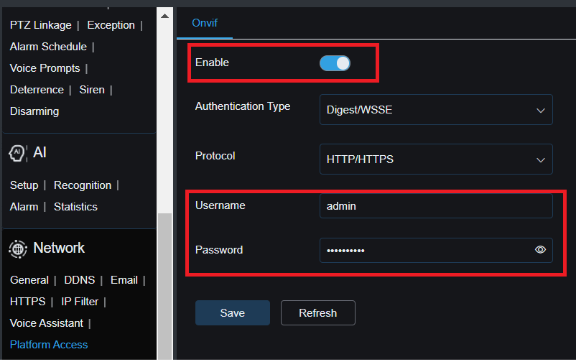
Network - Platform Access - Enable onvif
Set a username and password (this will be needed for snapshot authentication)
(Need to enable onvif in Platform access of IVSEC NVR):
Snapshot string
http://NVRIPADDRESS:80/onvif/snapshot?channel=x
NOTE: channel=x (x = 1, 2, 3, 4 based on camera channel number in NVR)
Examples:
http://192.168.80.223:80/onvif/snapshot?channel=1
http://192.168.80.223:80/onvif/snapshot?channel=2
Add the string to a web browser to test. You may be prompted to enter the credentials
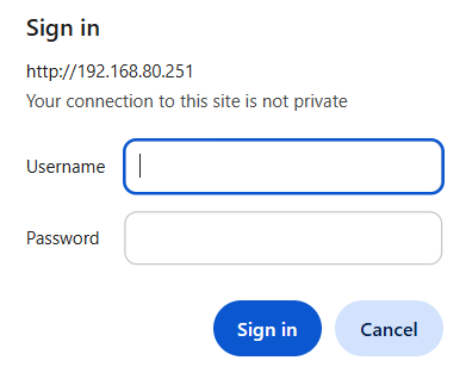
Alternatively, you can add the username and password credentials to the snapshot string
Example:
http://admin:password@192.168.80.223:80/onvif/snapshot?channel=2
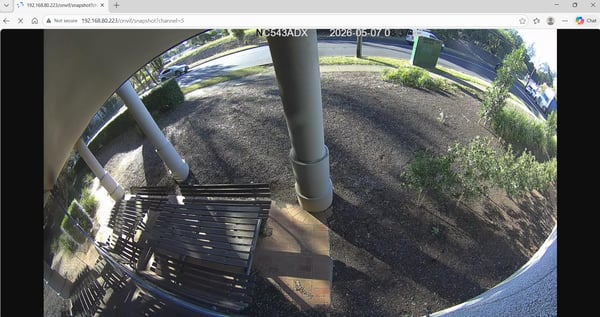
Example of snapshot appearing in web browser:
IVSEC Camera Snapshot String without an NVR (8.2.4.1 and VC firmware)
http://CAMERAIPADDRESS:80/API/OnvifSnapshot/Get
Example:
http://192.168.80.251/API/OnvifSnapshot/Get
NOTE: Unlike the NVR, you don't need to enable onvif like we did with the NVR
Alternatively, you can add the username and password to the snapshot string
Example:
http://admin:password.@192.168.80.251/API/OnvifSnapshot/Get
Test the string using a web browser to ensure the snapshot works
IVSEC NVR RTSP string (8.2.4.1 and VC version firmware)
Ensure onvif is enabled in the NVR as well as username and password has been added (as shown in NVR snapshot setup)
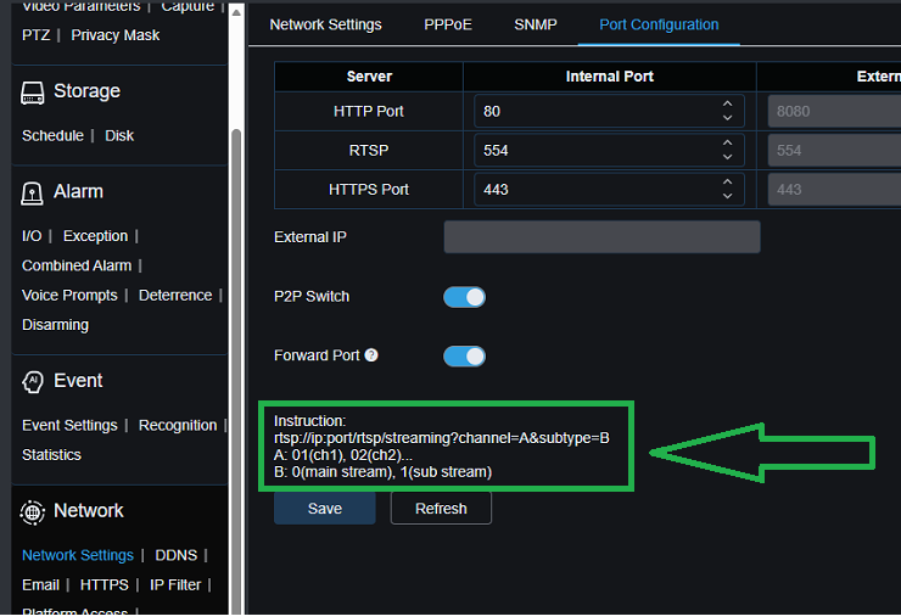
Above image explains the NVR rtsp string
rtsp://NVRIPADDRESS:554/rtsp/streaming?channel=A&subtype=B
A: 01 (ch1), 02 (ch2)
B: 0 (mainstream), 1 (substream)
Examples:
rtsp://192.168.80.223:554/rtsp/streaming?channel=01&subtype=1
rtsp://192.168.80.223:554/rtsp/streaming?channel=02&subtype=1
NOTE: channel=0x (0x = 01, 02, 03, 04 based on camera channel number in NVR)
You could also add the username and password credentials to the rtsp string:
Example:
rtsp://admin:password@192.168.80.223:554/rtsp/streaming?channel=01&subtype=1
IVSEC Camera RTSP String
Login to camera
Network – RTSP – RTSP Enable – make sure this is enabled

Refer to "Instruction" details on above image explaining the RTSP string
rtsp://IP:RtspPort/rtsp/streaming?channel=01&subtype=A
A: 0 (mainstream), 1 (substream), 2 (mobile stream)
Example of camera RTSP sting:
rtsp://192.168.80.251:554/rtsp/streaming?channel=01&subtype=1
Testing RTSP string of NVR or Camera
Download and install VLC media player - https://images.videolan.org/vlc/
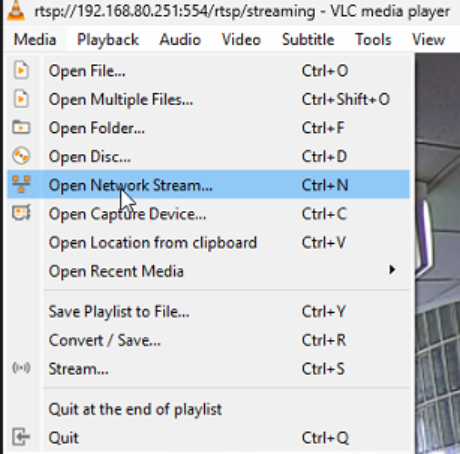
Click “Media” – “Open Network Stream”
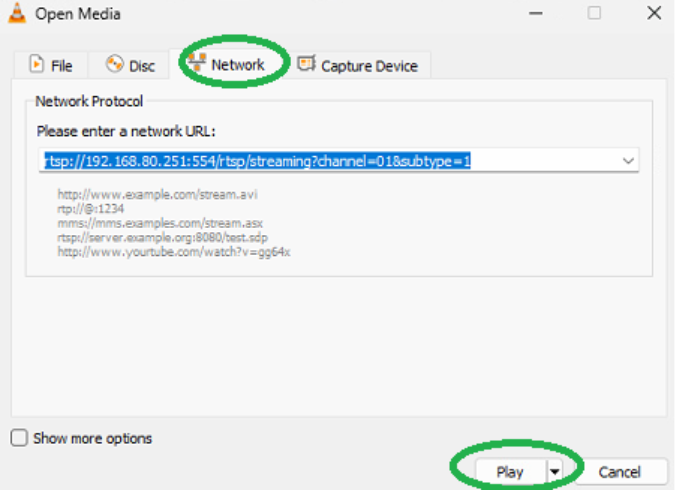
Network – Add the rtsp string and click “Play”
Enter the username and password of the camera or the onvif credentials of the NVR
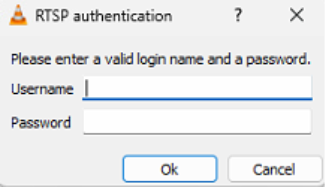
NOTE: If you have used a string that already has the username and password added then the authentication popup menu won't appear
If the stream appears this means the rtsp string works
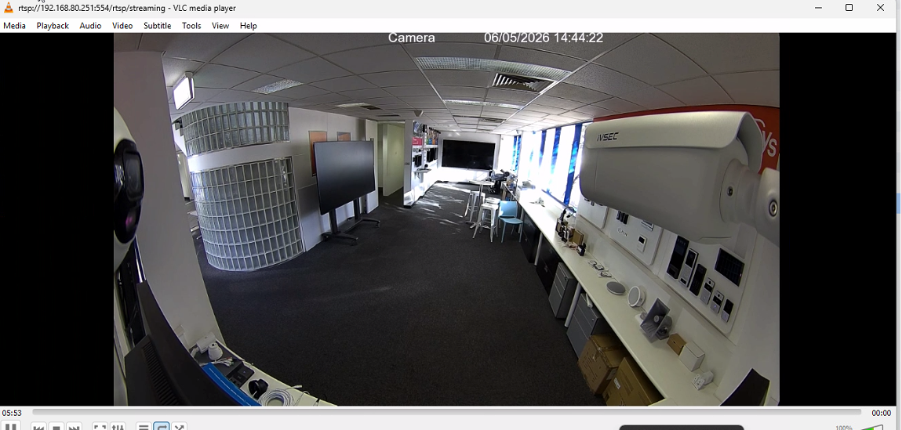
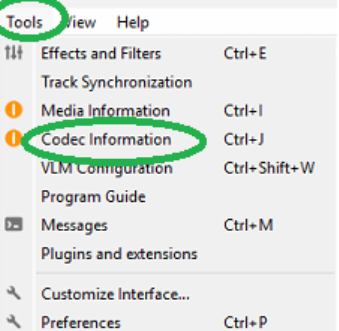
If you want to check the codec inofmation of the RTSP stream being used go to Tools - Codec Information
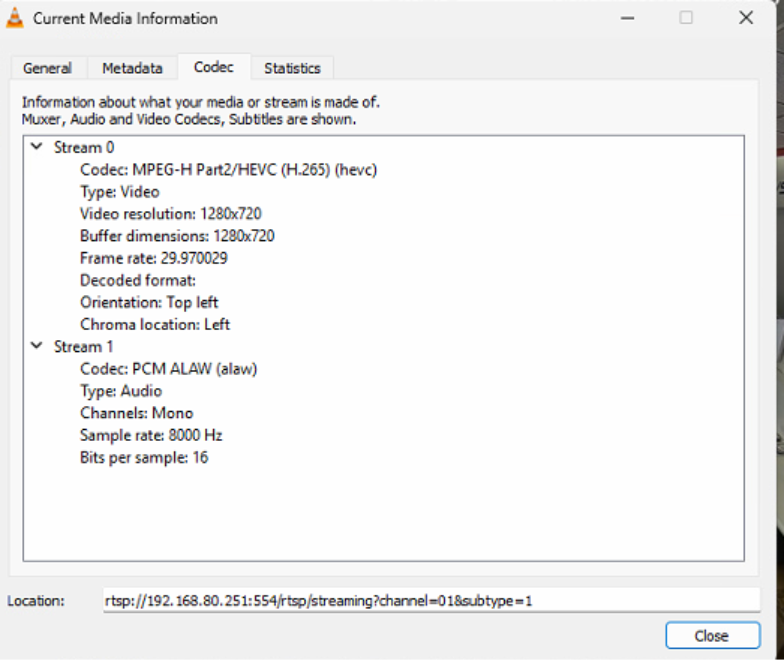
Note: Some home automation systems only support H264 encoding or specific resolution settings. These settings are adjustable in Record - Encode
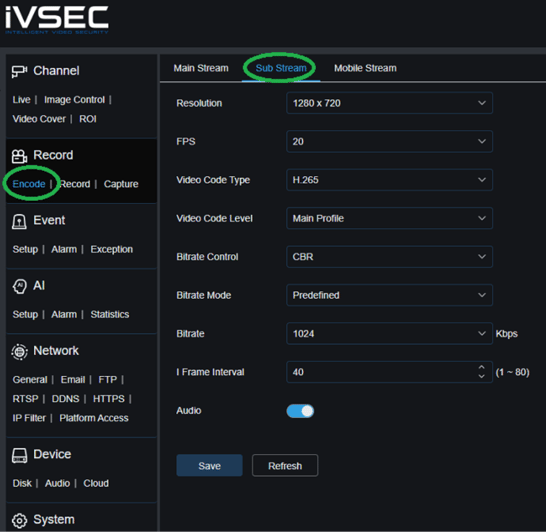
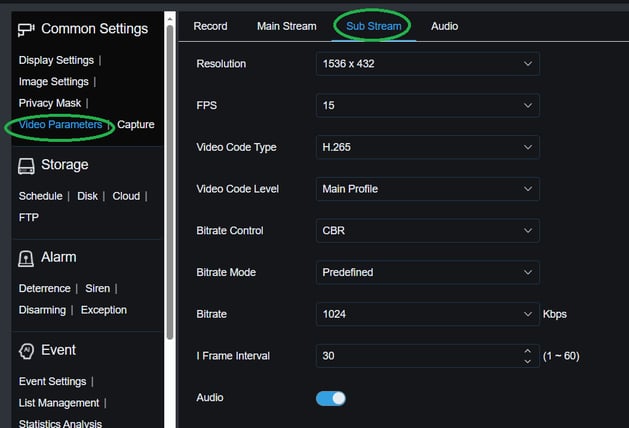
If you can't find the record - Encode menu when logged directly into the camera then check for "Video Parameters"
Older Camera RTSP string
If you have an old IVSEC camera it may use a different rtsp string. Example below
rtsp://CAMERAIPADDRESS:554/ch01/1