
Upgrade 2N and GSC3574 to latest firmware
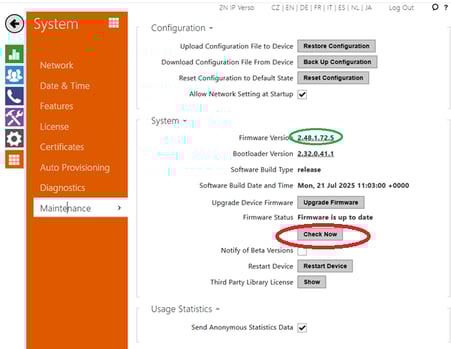
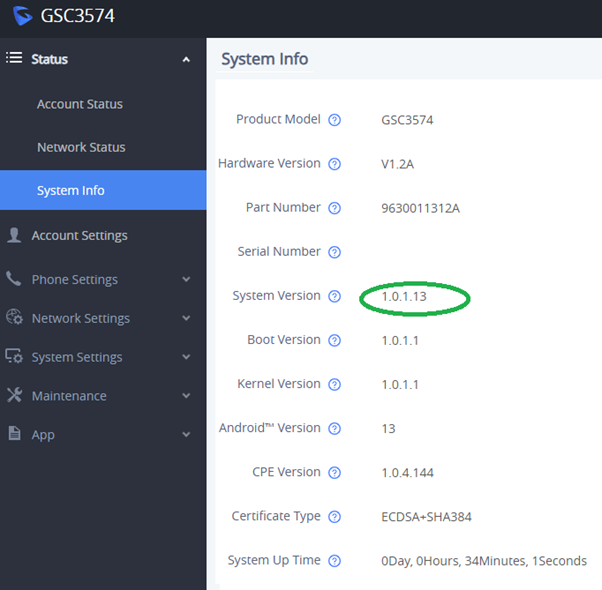
As of 06/02/2026 latest GSC3573 FW is 1.0.1.13
https://www.grandstream.com/support/firmware
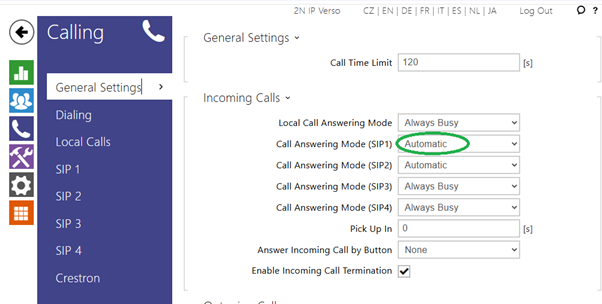
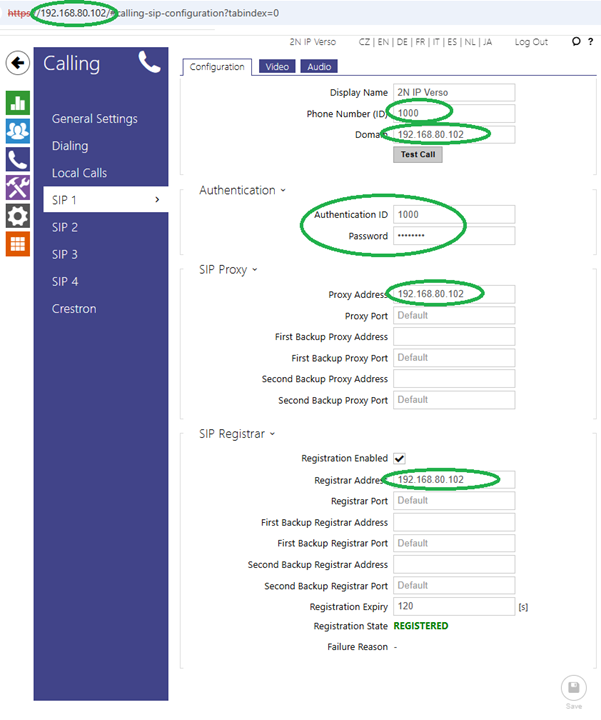
Register SIP1 using the IP address of the Intercom you are logged into fill out highlighted sections. Click Save
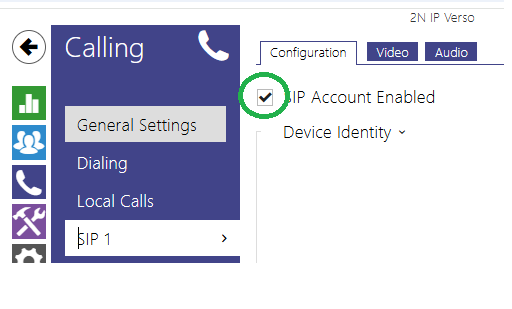
Make sure Registration State showing as REGISTERED
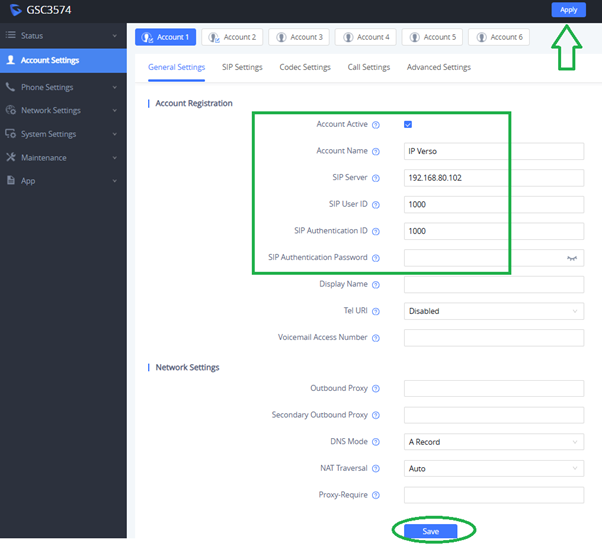
Login to GSC3574 – Account Settings – Account 1
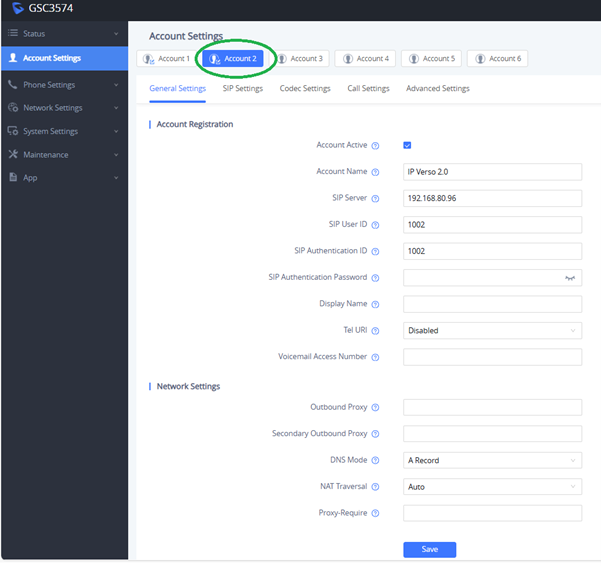
Activate account and fill our the same details as set on Intercom
Click Save and Apply
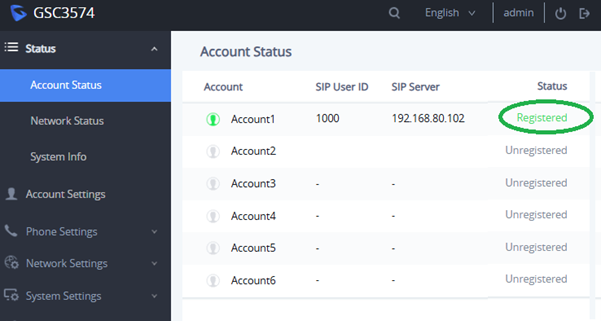
Account Status – Check Status is showing as Registered
Create User to call GSC3574
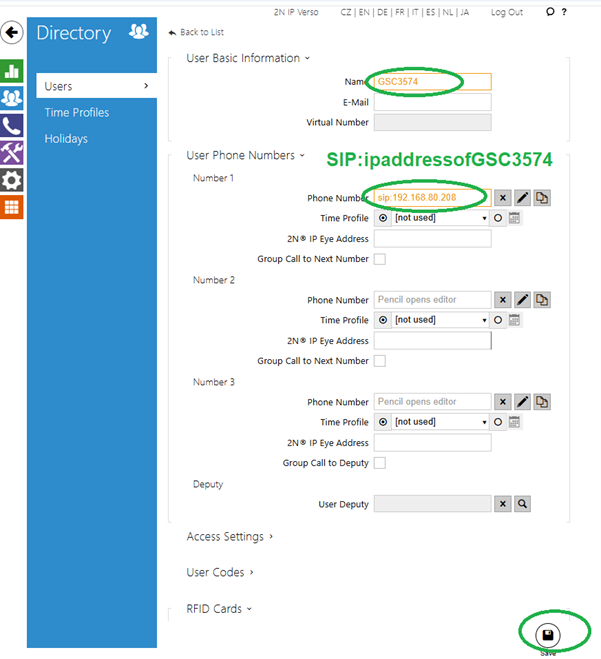
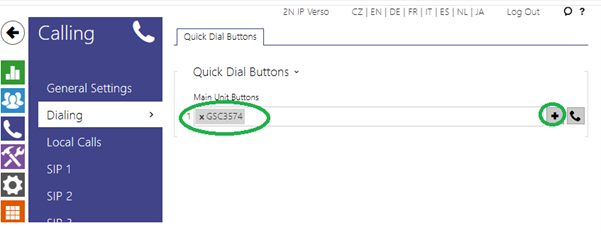
Add user to quick dial button - Save
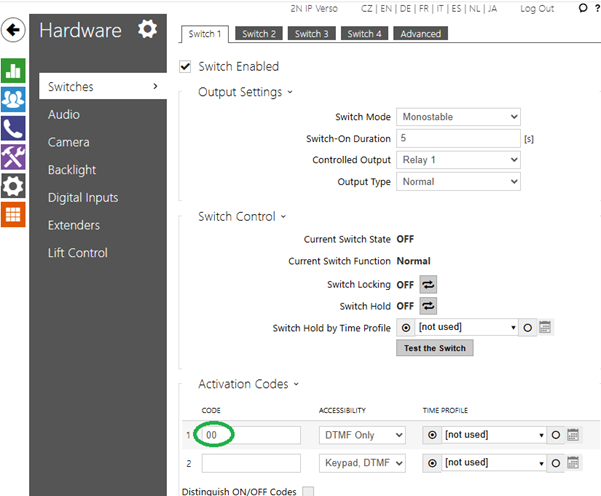
Check what the DTMF code is in Intercom. Default is 00
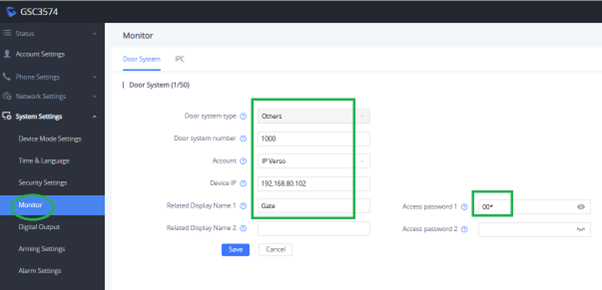
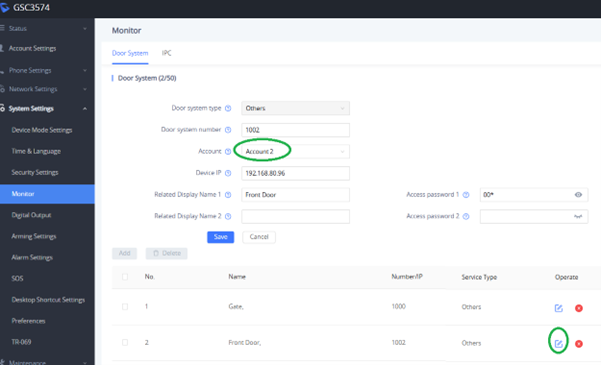
On GSC3574 under system settings – Monitor
Add
Fill out details as below
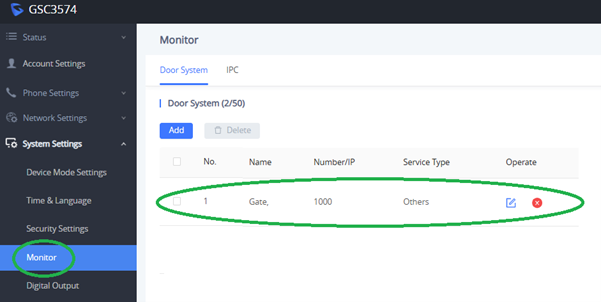
If you have 2 x Intercoms follow the same process however the SIP phone number needs to be different
2nd Intercom as below (using 1002)
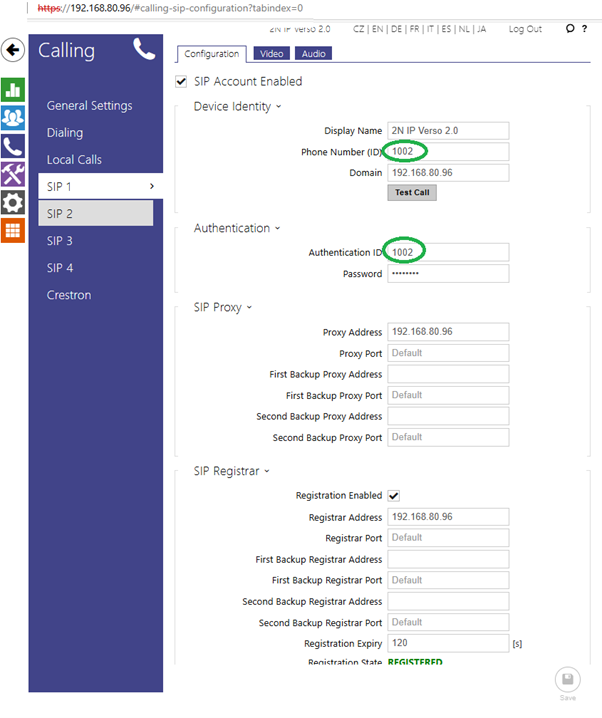
Use those credentials to register into Account 2 of the GSC3574
Add the 2nd intercom into the monitor section
NOTE: Grandstream GSC3574 has 6 SIP account so potentially you could have 6 intercoms registered